A month at a time.
Import CSV, OFX, or QFX files from your bank or credit card provider. Preview the activity before saving. You can also confirm one transaction from a receipt or screenshot.
Your bank files become organized business records. Review a month of activity, see where your money goes, and get back to the work that matters.
Coming soon to the App Store · Mac, iPhone & iPad
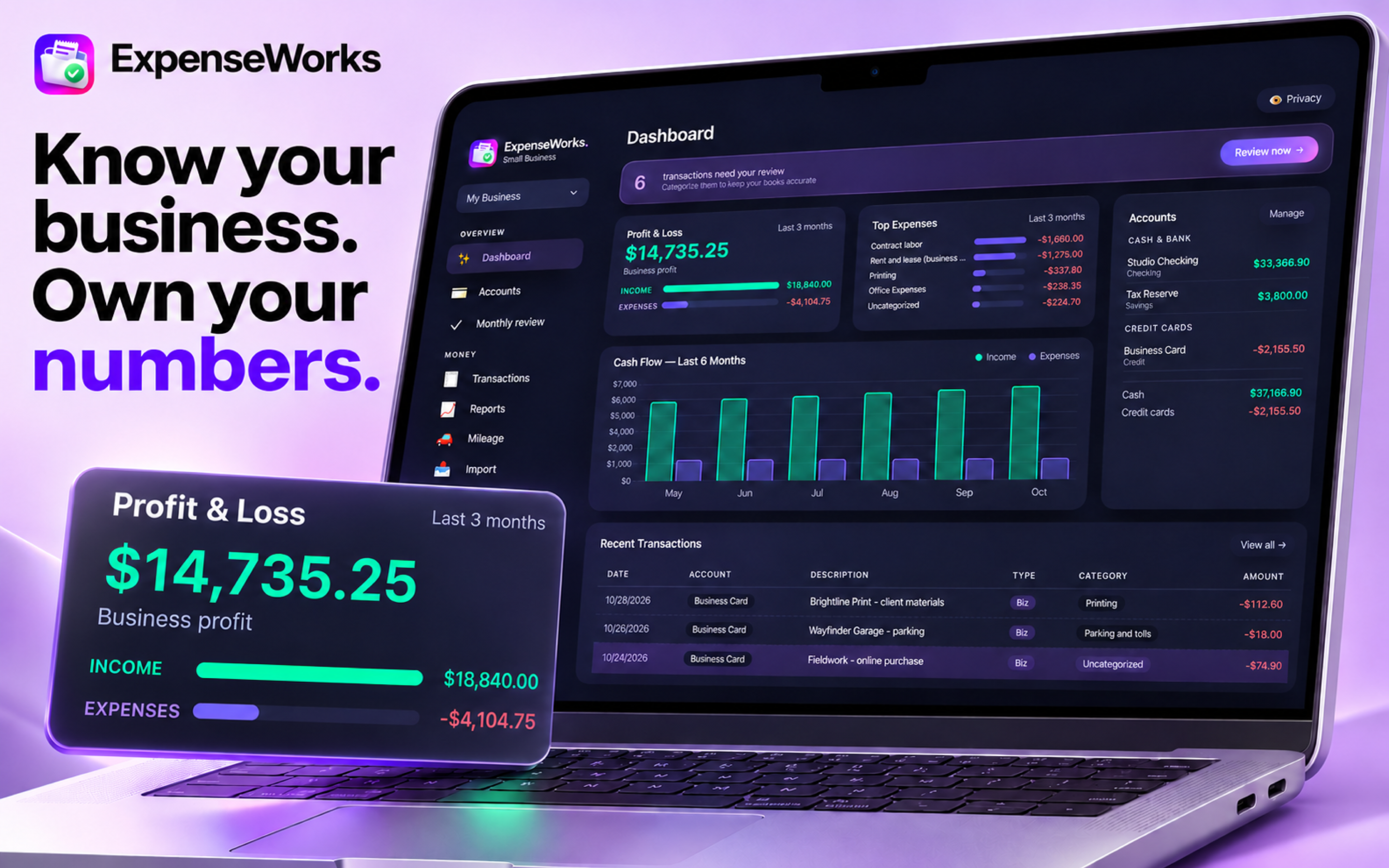
App imagery shows illustrative sample data. Layouts vary by device.
Start with the records you already have. ExpenseWorks brings the details into one place, so your monthly review feels manageable.
Import CSV, OFX, or QFX files from your bank or credit card provider. Preview the activity before saving. You can also confirm one transaction from a receipt or screenshot.
Categorize transactions, separate business and personal purchases, and split mixed expenses. Keep each account’s history together.
Explore income, spending, and profit and loss. Review categories, record business mileage, and export reports for your records or accountant.
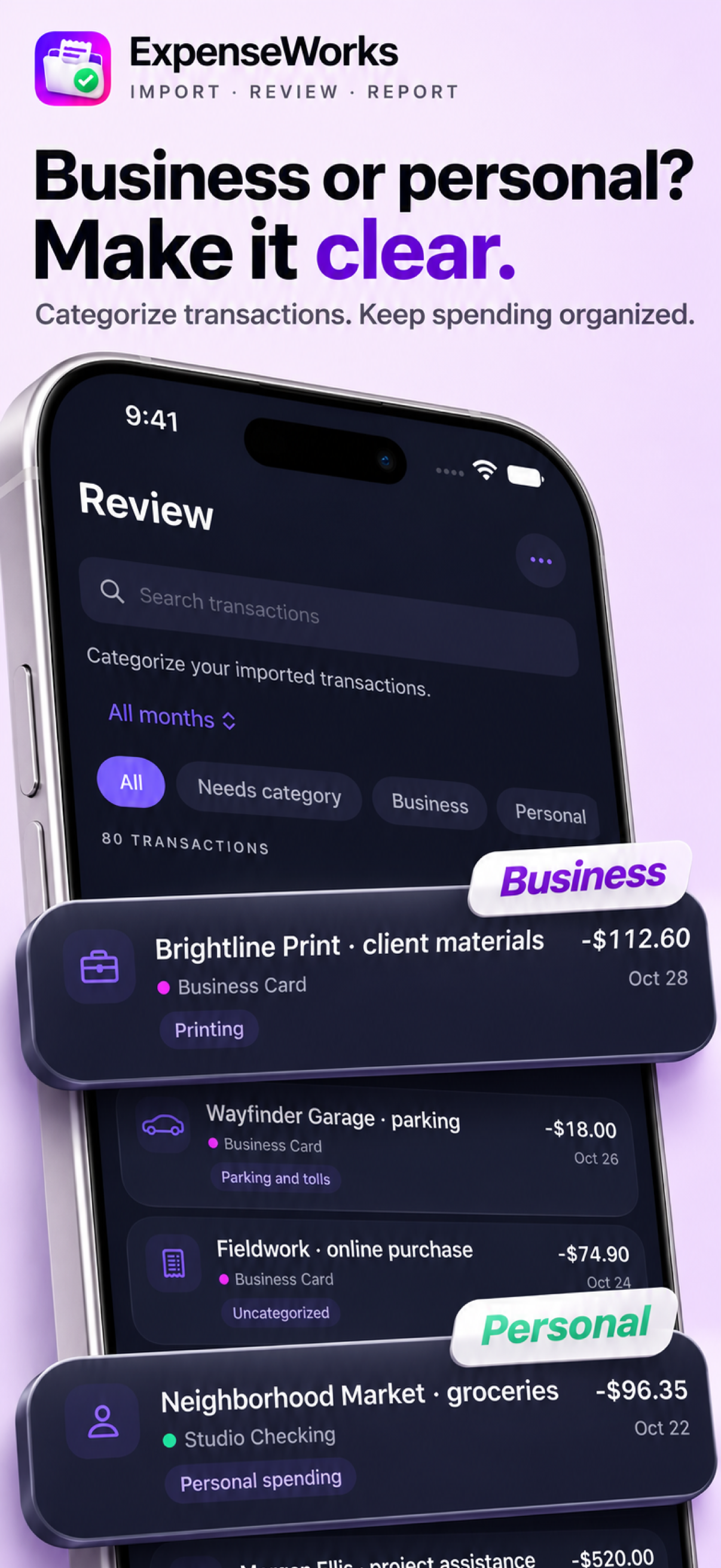
A transaction is more useful when you know what it means. Give every purchase a category and every account a place.
Work through monthly imports on Mac. Review activity on iPhone. Explore reports on iPad. Private iCloud sync brings your records across devices signed in to the same iCloud account, when enabled and available.
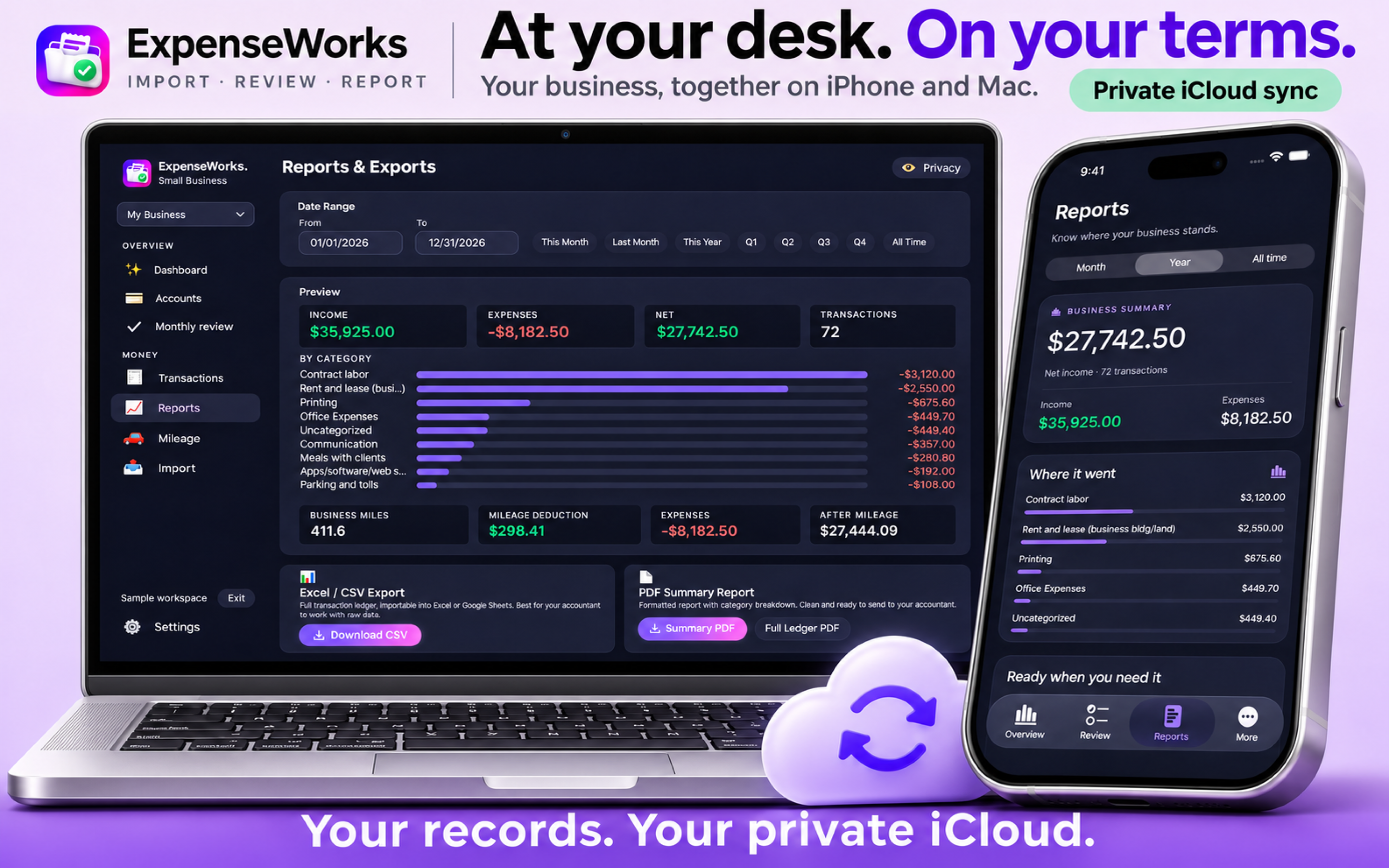
Personal financial records stay on your devices and in your private iCloud workspace when sync is enabled. ExpenseWorks does not connect directly to your bank.
Start free with 1 account and 35 saved transactions. Explore the separate sample workspace without using your allowance. Pro removes the account and transaction limits.
Pay month to month.
Renews until canceled.
One payment each year.
Renews until canceled.
Pro access without
a recurring subscription.
Planned US pricing. Purchase options and local prices appear in the app when available. Subscriptions are billed through Apple. Existing records remain readable and exportable if a subscription ends. No purchase is made on this website.
No. Download a transaction export from your bank or card provider and import it into ExpenseWorks. CSV, OFX, and QFX files are supported. You never provide ExpenseWorks with your bank password.
Yes. Save your bank export to Files, then choose it in ExpenseWorks. You can also use a receipt or screenshot to prepare one transaction, review the details, and confirm it. PDF bank statement import is not supported.
No. ExpenseWorks is built around reviewing imported activity, including a month of transactions at a time. Manual entries are available for missing purchases or income.
Your personal workspace can hold one account and 35 saved transactions across businesses. Archived accounts count toward the account limit. Demo records do not count. Pro removes those limits; your existing records remain accessible when Pro ends.
Enable iCloud for ExpenseWorks and use the same iCloud account on each device. Apple manages sync timing, which depends on connectivity and iCloud availability. You can check sync status inside the app.
Use our contact form for import questions, feedback, purchase help, or privacy requests. Please do not include bank passwords or financial files.